|
FLWRAP Users Manual
1.3
|
|
FLWRAP Users Manual
1.3
|
Lets suppose you want to send a critical message that must be received exactly as it was sent, or maybe you want to send a data file where it's highly unlikely that even a trained operator could tell that there was an error in receiving the data. Or perhaps you need to broadcast a weather bulletin or situation report to multiple stations and allow each station to verify that the message was received exactly as it was sent.
Flwrap is an application that is designed to take care of each of these situations. Flwrap allows you to transmit a text message, image, or binary file to either single or multiple stations and allow each receiving station to verify that the transmission was received without error. In the discussion which follows the application name is Flwrap, the file encapsulation process is called wrap, wrapping and the encapsulated file is said to be wrapped.
The flwrap executable is a small desktop application that encapsulates a text file, an image file, or a binary file within a set of identifier blocks. These blocks include a 16 bit checksum that is used to test the encapsulated file for integrity. Flwrap is designed to be used to best advantage with fldigi but can be used with any digital modem program. Fldigi can recognize an wrapped transmission in the Rx data stream and automatically save the file. Fldigi can process multiple wrapped files that are sent in rapid succession. Fldigi does this without operator intervention. The conversion of files to and from the wrapped format do still require an operator.
A text file is encapsulated without changes to the text. Images and other binary files are first converted to a base-64 format. The converted file is then encapsulated. The header blocks identify the type of file and whether or not it has been converted to base-64. Files with any of the following extensions will be treated as binary data files and converted to the base-64 format:
jpg, jpeg, png, gif, bmp, ico, zip, gz, tgz, and bz2
Using flwrap is very simple. Install the executable file and then create a short cut to the executable on the desktop.
Windows users may find it a bit confusing to install a program that does not have an installation wizard, but it really is very easy to do. The flwrap.exe program is contained in the zipped fldigi archive that also contains fldigi.exe and flarq.exe. If you have already installed fldigi from this archive then you already have flwrap.exe installed. The installer creates a desktop icon for the application. Additional shortcuts to flwrap may be dragged into any convenient folder where files to be wrapped are located.
Left click (or double click) to launch the application and you will see a brief description of usage.

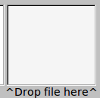
You may wrap/unwrap a file using three different techniques.
All three can be used on Linux and Windows, but (1) and (2) are the most user friendly.
(2) and (3) can be used on OS X, but (2) is prefered. OS X users should not expect technique (1) to work. This is a limitation of the OS X desktop manager and not flwrap.
Either technique will yield the following when successful.
and you will see the following results :
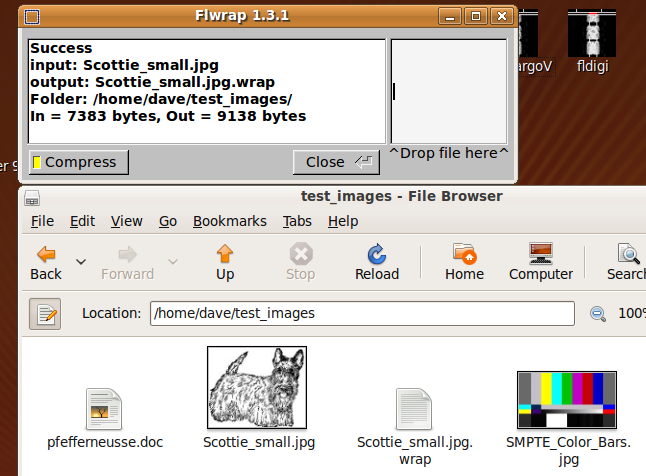
!! FLWRAPPED FILES ARE ALWAYS PLACED IN THE SAME FOLDER AS THE SOURCE FILE !!
The file "Scottie_small.jpg" has been wrapped by the drag and drop technique. The results of the flwrap appear in the flwrap info dialog and you can see the new file in the original source directory (all on a Linux computer). The original file was an image and so it was converted to ASCII format using base-64 encoding before it was wrapped.
[WRAP:beg][WRAP:lf][WRAP:fn Scottie_small.jpg][b64:start] AUxaTUEAABzXXQAAAAQAf7Yb7fCEQFjjkd4QJ1hhjKFp2u0ecgqwnuNw3ZIVRxMRPng1Ghkg t9zOJ117omOU0L/w9j2ace8X3+DAO/4C54Tr6Xuru1g4tiuMU2oaA2+R2tLXaNEkTeUYKgWG
... removed data for this example
GwFcGQIpP8wA6WQTbzmx5ggV7Qj524JWO2cEcS2nRFTG6EeoQdvmGsLwXwMIeQA= [b64:end][WRAP:chksum 8710][WRAP:end]
At the receiving end the file might be named "wrap-090318-001.wrap." Drag and drop it onto the flwrap launch icon to unwrap the file.
If the transfer had errors then the unwrap process would fail. The message dialog would so indicate:
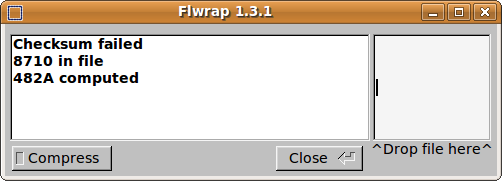
You can continue to drop files into the drop box and each new file will be treated independently.
flwrap also compresses and expands files in addition to encapsulating them. Binary files such as a MS Word file or an executable must be converted to base 64 before being wrapped. Those files are first compressed before the base64 encoding is applied. A Word document recipe for Pfefferseuse cookies is 11 kB. When wrapped by flwrap it is 3.1 kB in size.
The wrapped file is an ASCII text file suitable for transmission using any of the fldigi modes other than CW, RTTY or the fuzzy modes such as FeldHell.
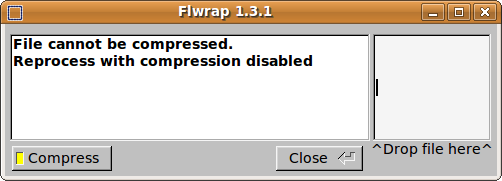
The compression method used in flwrap is called LZMA, Lempel–Ziv–Markov chain algorithm, a form of dictionary compression. There are times that LZMA cannot compress the data. The data set might be too small or have zero redundancy. Under those circumstances you will warned with a appropriate message:
Test files used for this help documentation:
pfefferneusse.doc
Scottie image
SMPTE Color Bars
 1.8.7
1.8.7